
Would you like to allow some time between appointments to organize your agenda better?
On Doctoranytime, you have two options: automatically add a break after every consultation or schedule breaks at specific times during the day.
- Automatically add a break after each consultation
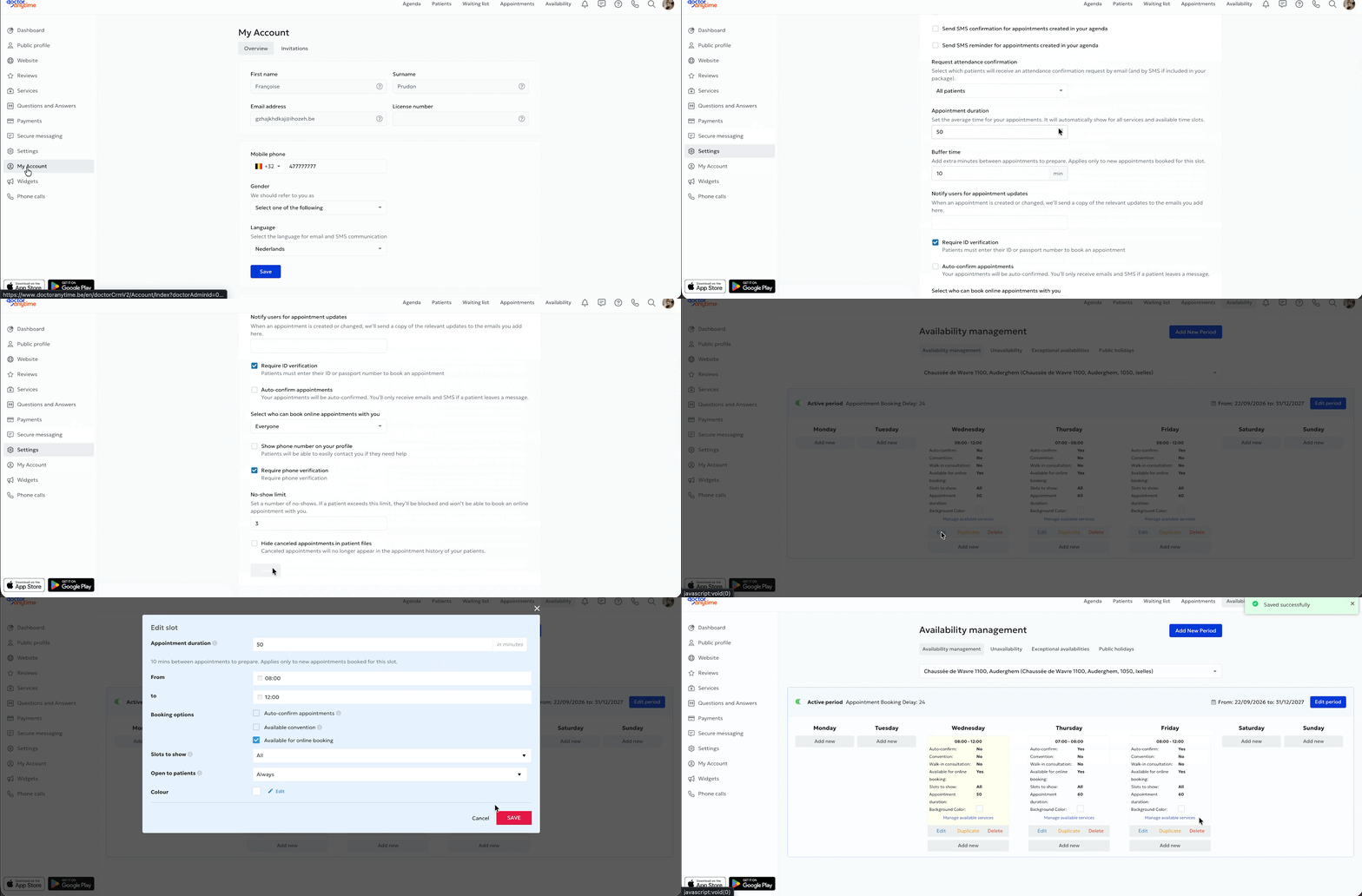
If you want a break after every appointment, you can configure this directly in your account settings.
To do so:
- Log in to your Doctoranytime agenda.
- Go to « Settings ».
- Select « Appointments ».
- Find the « Buffer time » setting.
- Enter the desired break duration after each consultation.
Important: one additional step is needed to apply this change to your availability.
Once the buffer time is configured, you must update your time slots:
- Go to the « Availability » tab.
- Select the relevant practice.
- Click « Edit » under each time slot.
- Change the end time of the time slot.
- Click « Save ».
- Repeat this for each relevant time slot.
The buffer time will then apply to your new appointments.
- Schedule a break after several consultations
If you prefer breaks at specific times of day, such as after several consultations or during lunch, you can simply create several separate time slots.
To do so:
- Go to the « Availability » tab.
- Select the relevant practice.
- Configure your first time slot.
- Click « Add new » to create a second time slot.
- Set the hours for this new slot, leaving a gap between the two.
- Click « Save ».
Example:
If you want to see patients from 8:00 a.m. to 5:00 p.m. with a break from noon to 1:00 p.m., create two time slots:
First time slot: 8:00 a.m. to noon.
Second time slot: 1:00 p.m. to 5:00 p.m.
No appointments will therefore be offered between noon and 1:00 p.m.
This method lets you schedule fixed breaks without adding buffer time after every consultation.
For more information on creating time slots, see our article « How do I open a time slot in my Doctoranytime agenda? ».