
A complete profile helps patients learn more about your practice and choose the practitioner best suited to their needs. The more information you provide, the more confidence your profile inspires and the better it showcases your work.
1. Complete your general information
Go to Public profile to fill in your main profile details. We recommend checking or completing:
- First name and surname.
- Academic qualification.
- Specialty and subspecialty. The subspecialty appears beneath your name on your profile and can be changed by our team at care@doctoranytime.be.
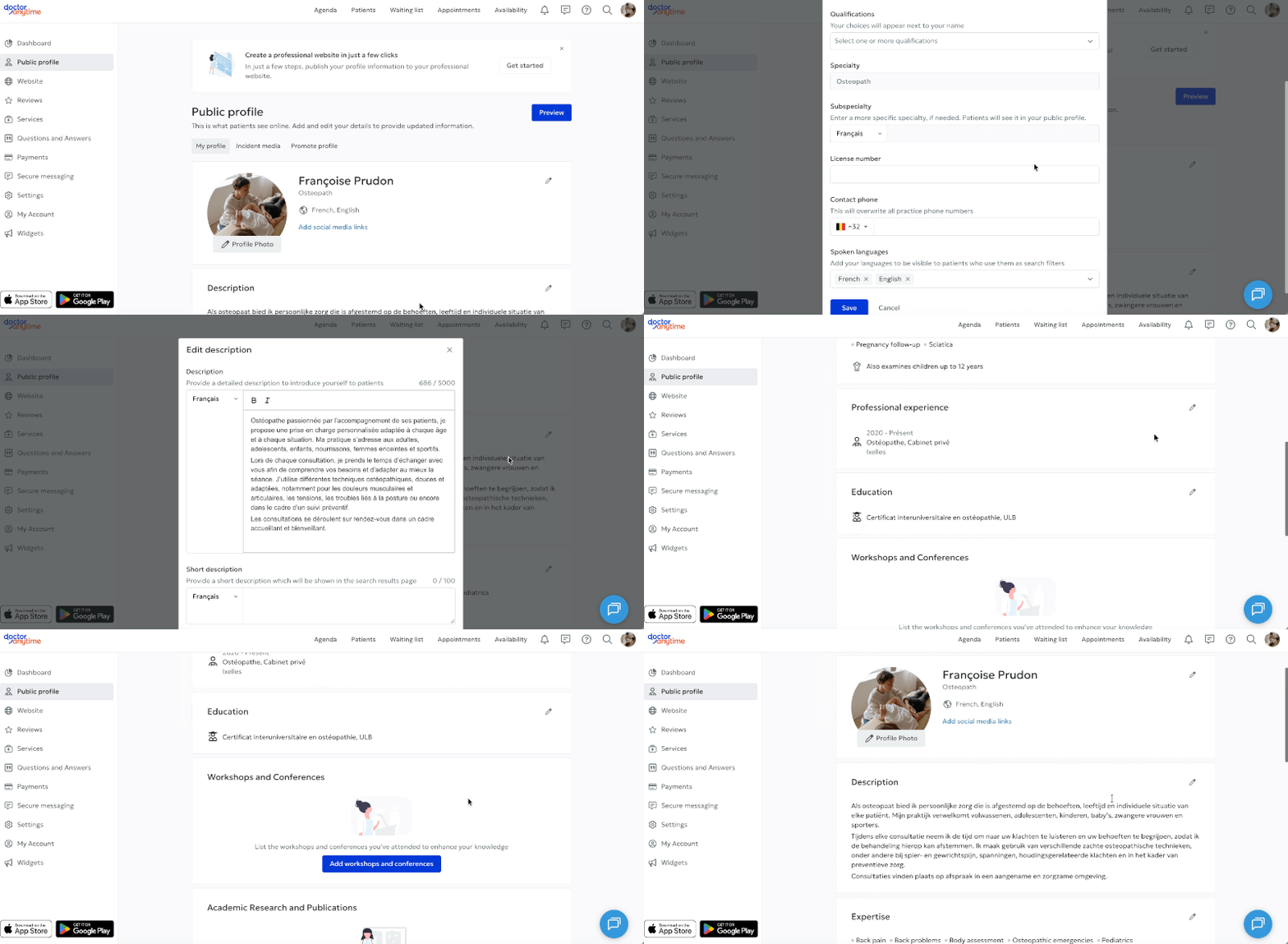
- INAMI/RIZIV number.
- Telephone number.
- Languages spoken.
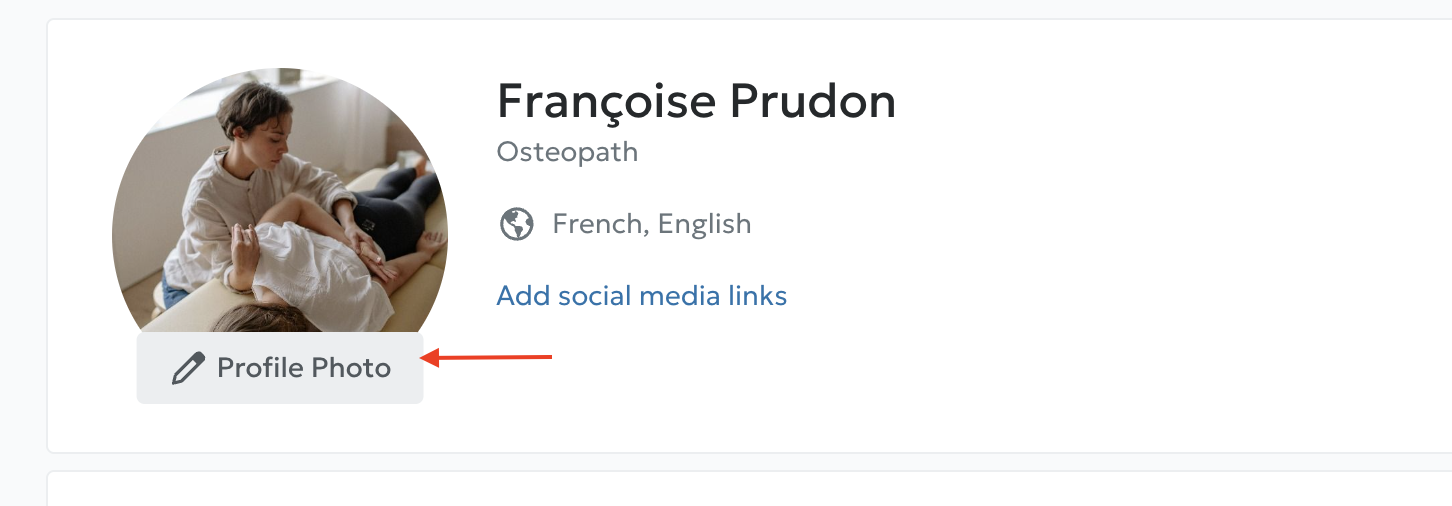
Add a profile picture
You can also add a profile picture. We recommend a photo of yourself rather than a logo: patients
generally place more trust in profiles showing the practitioner.
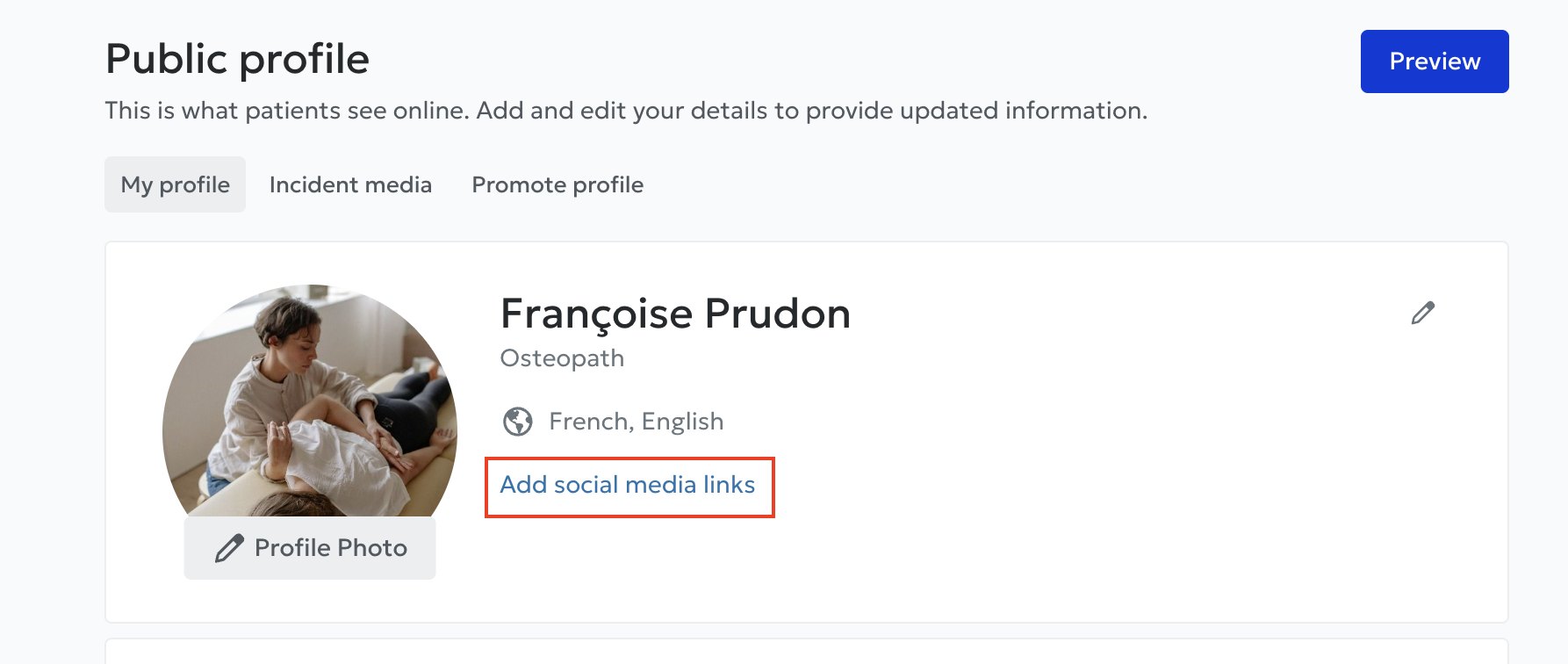
Add your website or social media profiles
If you have a website or professional social media accounts, add their links so patients can learn more about your work.
2. Write a description
In Description, introduce yourself in a few lines. You can explain:
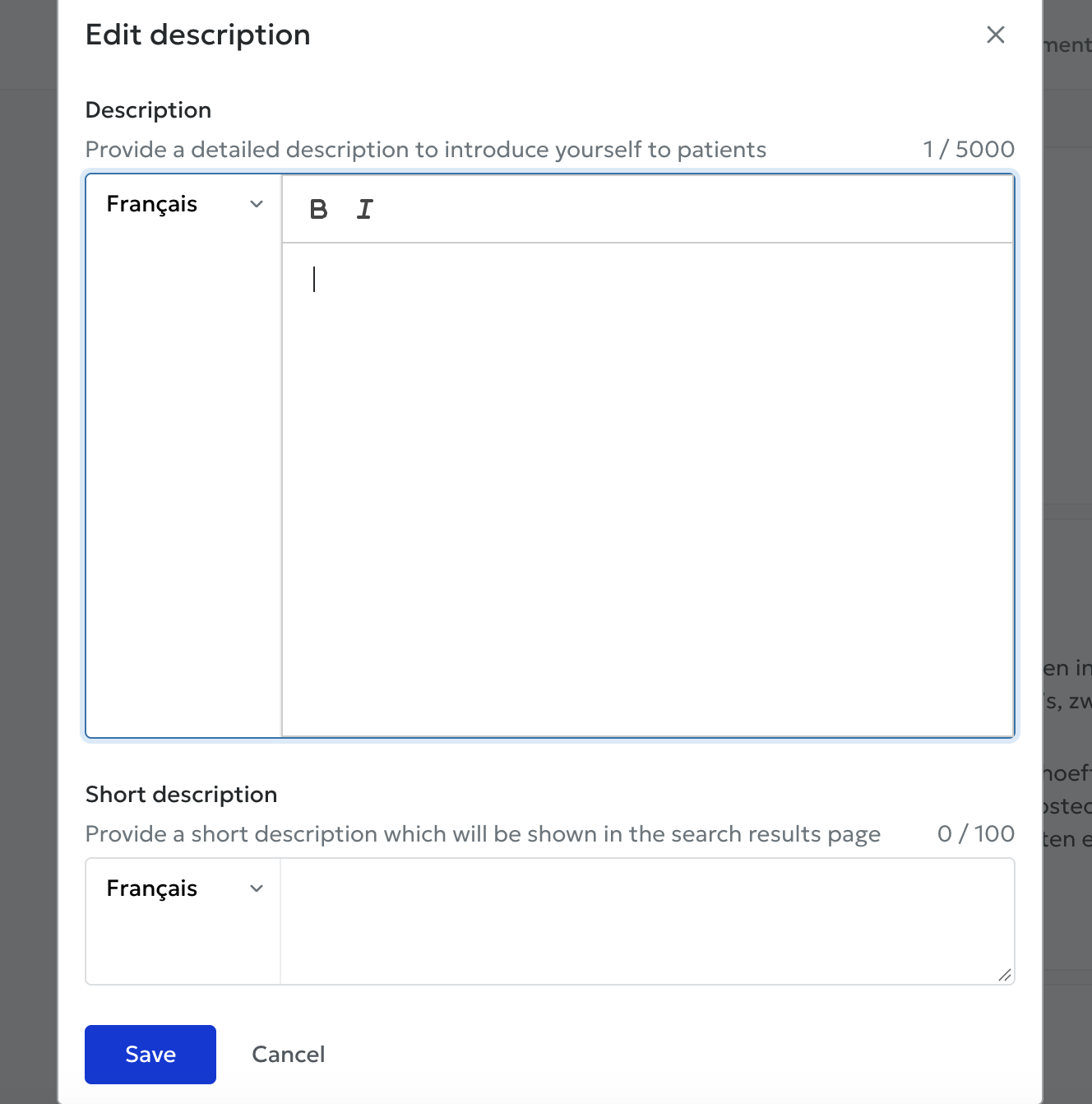
- Your approach to patient care.
- Your professional background.
- The types of patients you support.
- The treatments or consultations you offer.
The aim is to give patients a clearer idea of your practice.
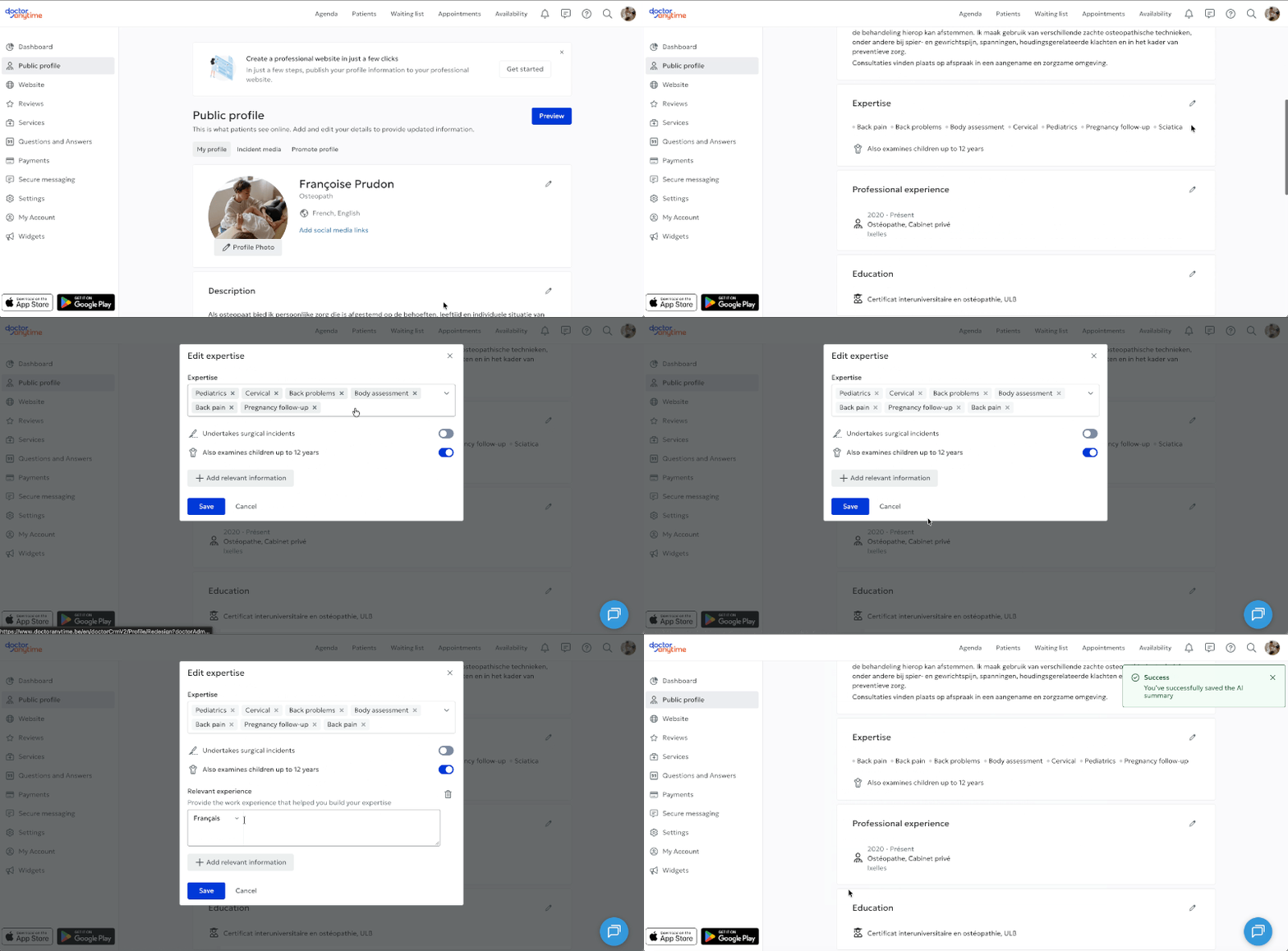
3. Specify your areas of expertise
The Expertise section lets you select up to seven areas from a predefined list. These do not necessarily have to be additional qualifications or training courses; they may be fields in which you consider yourself particularly experienced or knowledgeable.
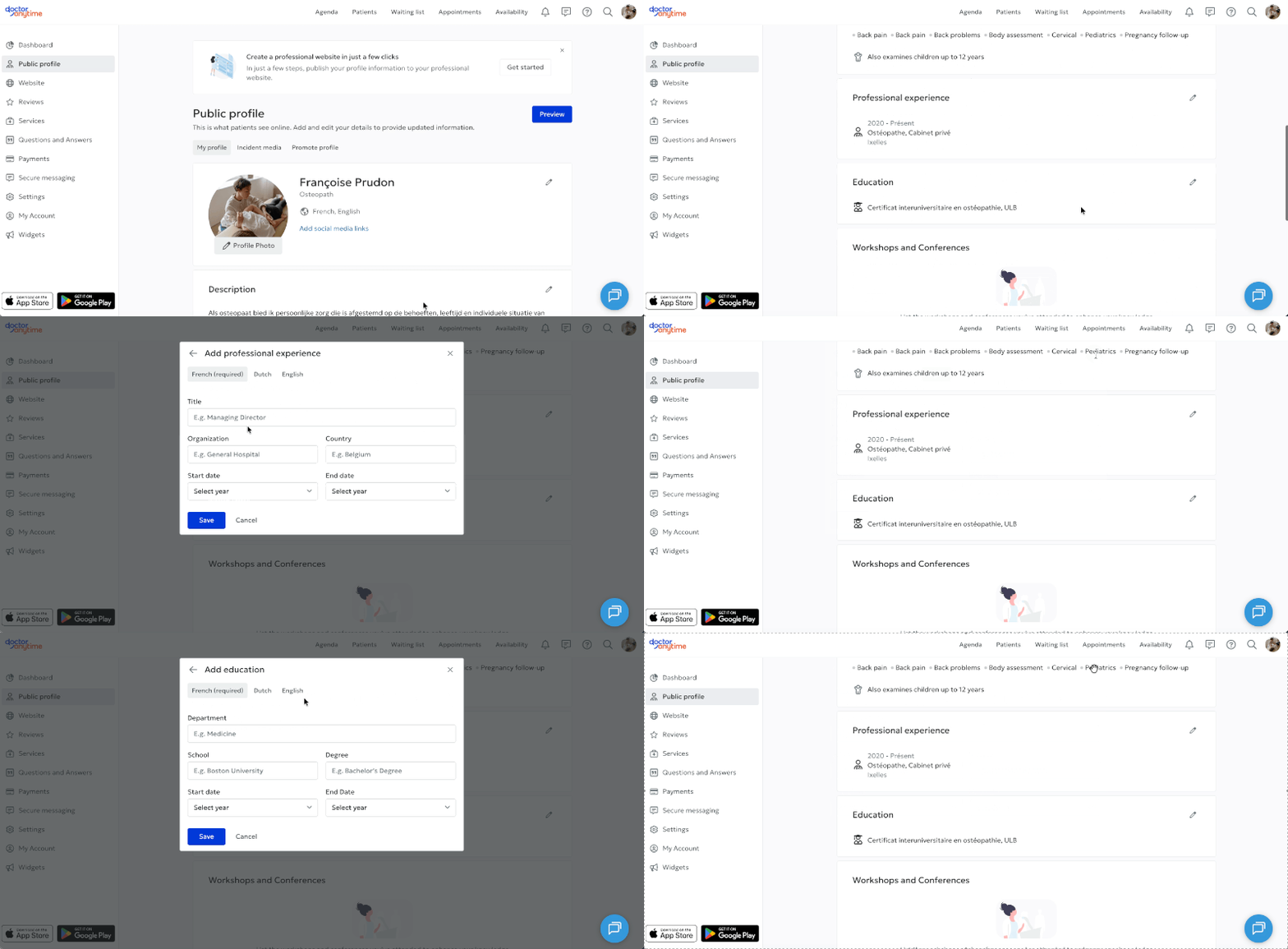
This information helps patients find a practitioner who meets their needs. We recommend selecting at least three.
4. Complete your professional background
Under Professional experience and Education, enter your work experience, training and qualifications.
You will also find optional sections for Workshops and Conferences, Academic Research and Publications, and Associations. These can enrich your profile if you want to highlight your professional background.
5. Update your practice information
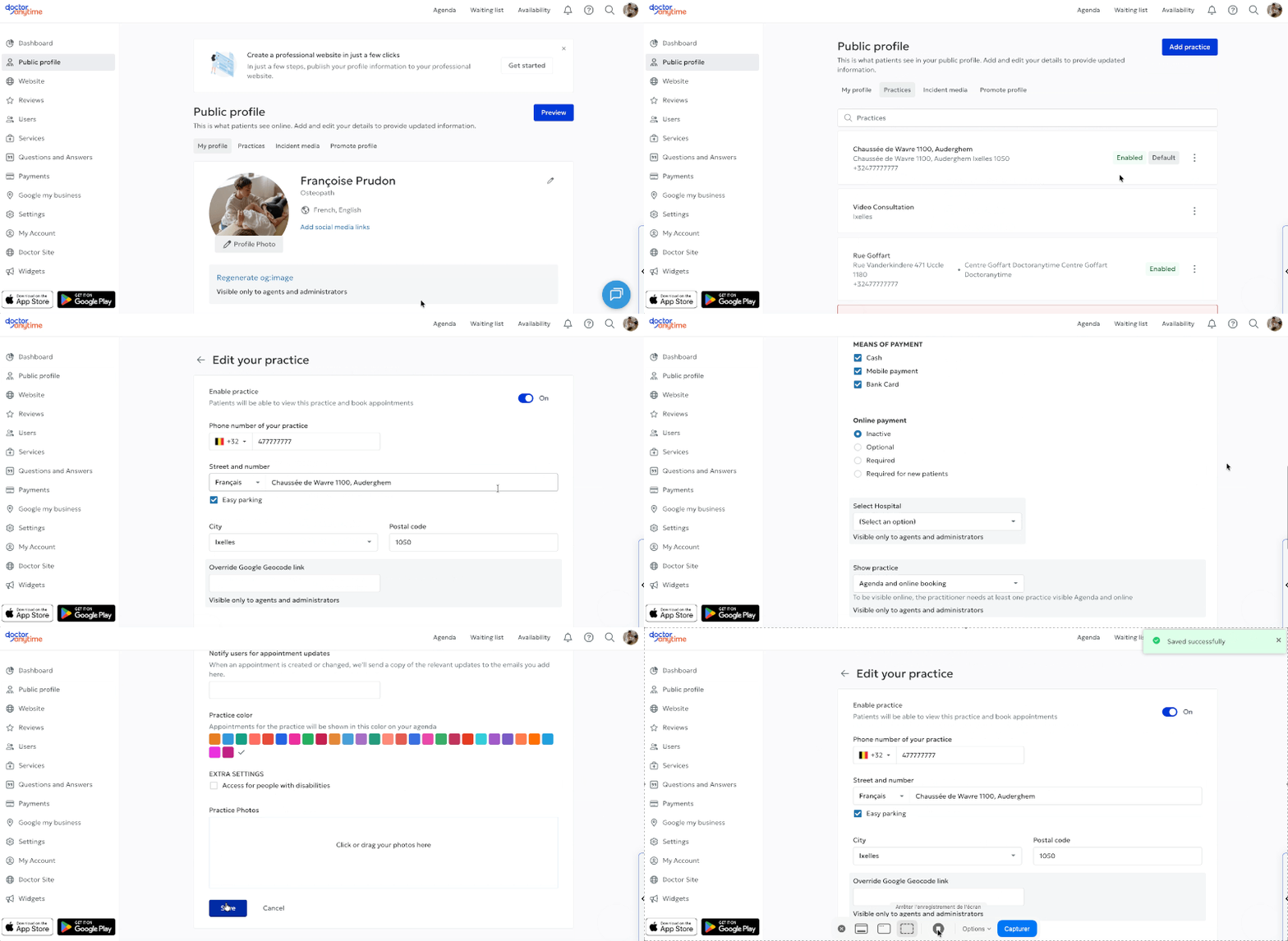
Go to Public profile > Practices. Next to your practice, click the three dots to the right of Active, then Edit.
You can update the practice name, address, telephone number and accepted payment methods (cash, QR code or bank card).
Add photos of your practice
You can upload practice photos in these settings. They appear on your public profile after your profile picture and let patients see your consultation environment before their appointment.
6. Configure your services
Services tell patients which consultations you offer and under what conditions. To manage them, click your profile picture in the top-right corner, then Services.
Here you can activate or deactivate services, add new services, change the duration of each consultation and set fees. See: Manage my services.
Enter your fees
We strongly recommend entering a price for each consultation. Patients appreciate knowing the cost before booking, making the process more transparent.
You can enter a fixed price or a price range if the amount may vary, for example depending on reimbursement or the patient's situation.
Explain price variations
If fees vary, use Price description to explain why. For example, specify reimbursement conditions or other information that helps patients understand the displayed price.
7. Enable patient reviews
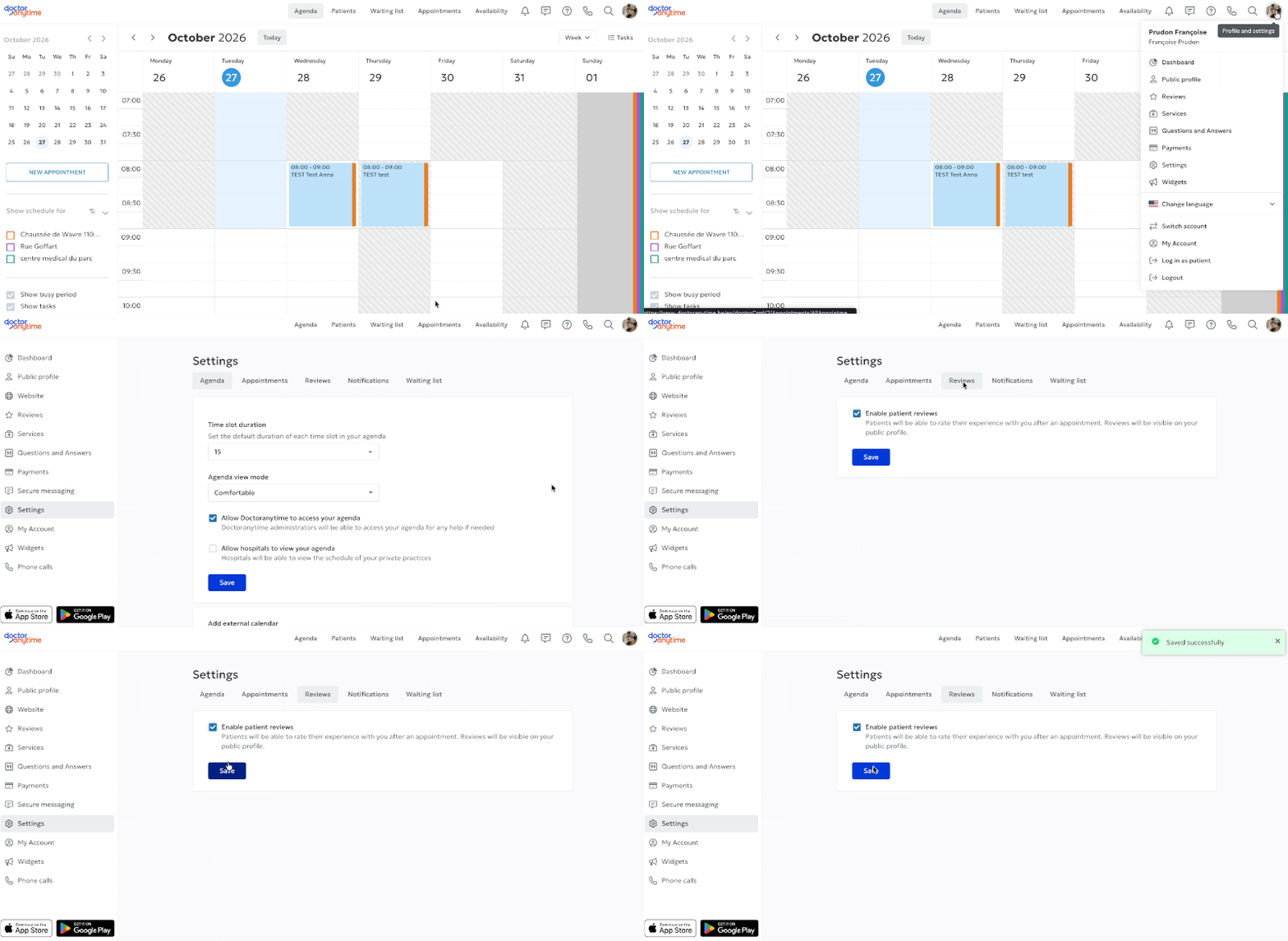
Patient reviews are optional. You can enable or disable them under Settings > Reviews.
We recommend leaving reviews enabled because they strengthen your profile's credibility and showcase your practice. Patients can share their experience after a consultation, helping other visitors understand your approach and feel reassured when booking.
You can also invite patients who have not previously booked through Doctoranytime to leave a review on your profile, to help you get started on the platform. See: How do I request reviews from patients?
For details, see: Guest Reviews.
These steps help you create a complete, attractive Doctoranytime profile. For Google visibility, see: