
A custom payment link allows you to request payment for any type of consultation by generating a secure link that you can share with your patient.
Prerequisites
Online payment must be activated on your account.
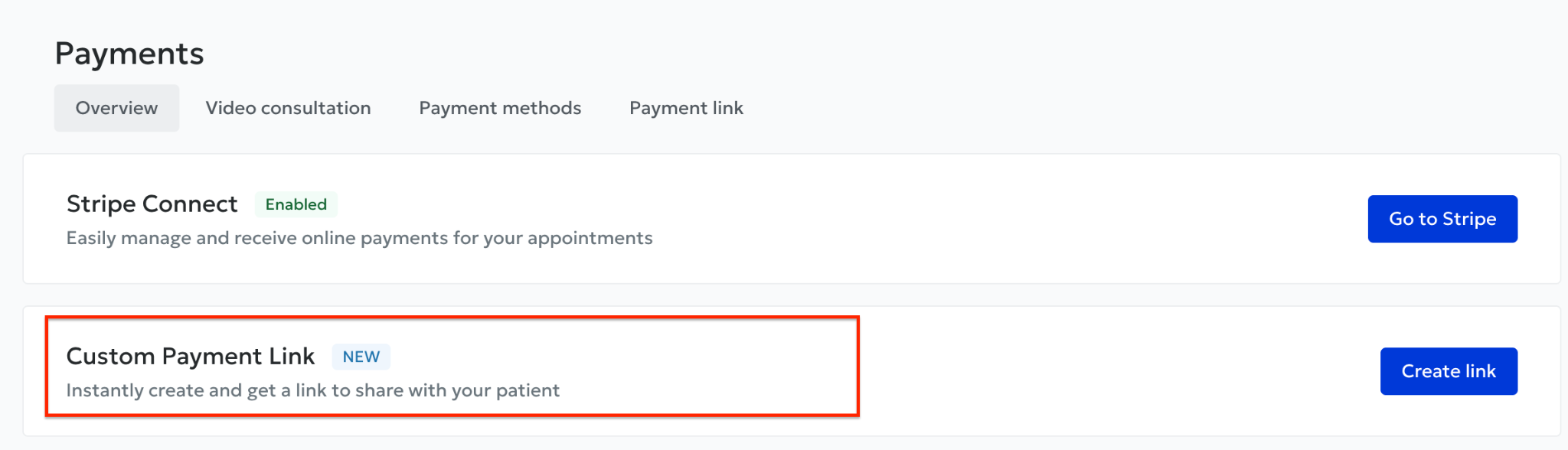
Check this under Online payments → Stripe Connect:
- If the badge displays Activated, you're ready.
- Otherwise, click Go to Stripe and follow the setup steps.
💡 Service fees: a 3% processing fee is applied to the amount charged. The net amount you will receive is displayed before confirmation.
Step 1: Open the payment link tool
- Click on your profile picture (top right) and go to the Payments tab.
- Select Payment link.
- In the Custom payment link section, click Create a link.
Step 2: Set the amount to charge
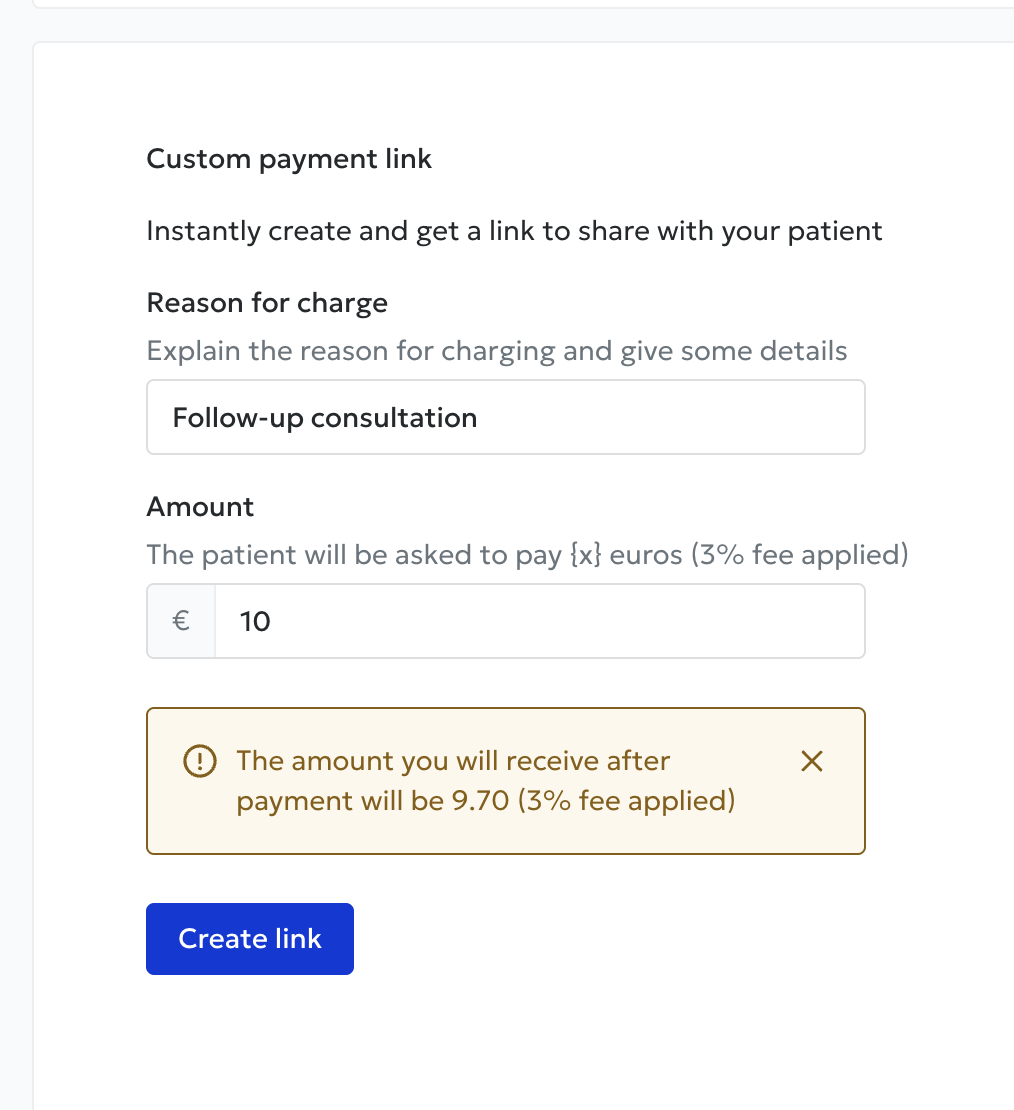
- Payment reason (required): briefly explain why you are charging the patient.
Example: Follow-up consultation on 20/03 - Amount (€) (required): enter the total amount to be collected. The net amount after fees are deducted is displayed immediately.
- Click Create a link.
⚠️ If a field is empty or the amount is invalid, the form will highlight the error that needs to be corrected.
Step 3: Share the link
A confirmation window will appear with the amount, reason, and unique payment URL.
Send via Doctoranytime:
- Click Send via Doctoranytime.
- Enter the patient's first name, last name, email and/or mobile number.
- Check Send link by email and/or Send link by SMS.
- Click Send.
The patient will then receive a message from Doctoranytime containing the link, allowing them to make the payment securely from any device.
Step 4: Track payments
Go back to Payments → Overview to see the status of each link created. Use the date or search filters, or click Export to download a report.
Possible statuses:
- Created: link created but not sent; payment not completed (link copied and shared manually)
- Sent: link sent; payment not yet completed
- Paid: funds received (fees deducted)
- Refunded: the payment has been refunded
- Cancelled: link cancelled; this is only possible if the payment has not yet been completed. The entry is automatically removed from the history
Frequently asked questions
Is there a limit to the number of links I can create? No, you can create as many as needed.
Can I cancel a link after sending it? Yes, at any time from the payment history table.
Does the patient need a Doctoranytime account to pay? No, they simply need to open the link and complete the payment securely.