
This option allows you, for example, to take a few minutes to write your notes, breathe, or prepare for the next patient without having to manually adjust your schedule.
How does the automatic buffer work?
When you activate this feature, a fixed buffer time is added after all your appointments, regardless of:
-
the type of consultation
-
its duration
-
or the time slot chosen by the patient
Exemple
You are a psychologist and you have set an automatic break of 15 minutes.
A patient books a 45-minute consultation at 10:00:
Theoretical end of the appointment: 10:45
Automatic buffer added: 15 minutes
Next available time slot shown to the patient: 11:00
How to activate it?
-
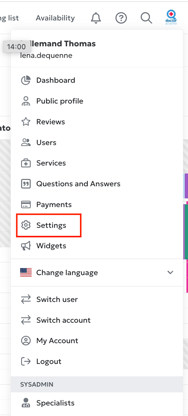
Click on your profile picture at the top right of the calendar and select Settings.
-
Go to the Appointments tab.

-
Scroll down to find the Buffer Time option.
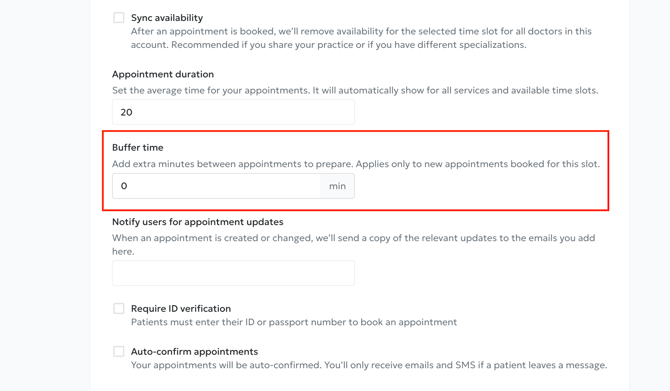
⚠️ Important: When you activate this option, it only applies to new appointments, not to those already scheduled.
How does it appear in your agenda?
The automatic buffer does not create an unavailability block in your agenda.
In practice:
-
The patient only sees the next available slot shifted according to the buffer.
-
You, however, can still manually add an appointment immediately after the previous one if you wish.
This flexibility allows you to adapt your schedule to your needs without additional constraints.