
You can create as many services as needed, defining their visibility, price, duration, practice locations and information for patients.
How do I add a service?
- Sign in to Doctoranytime.
- Click your profile picture at the top right and open Services.
- Click Add a new service.
- Choose a service from the list for your specialty, or select Create custom service at the bottom.
1. Choose whether patients can book the service
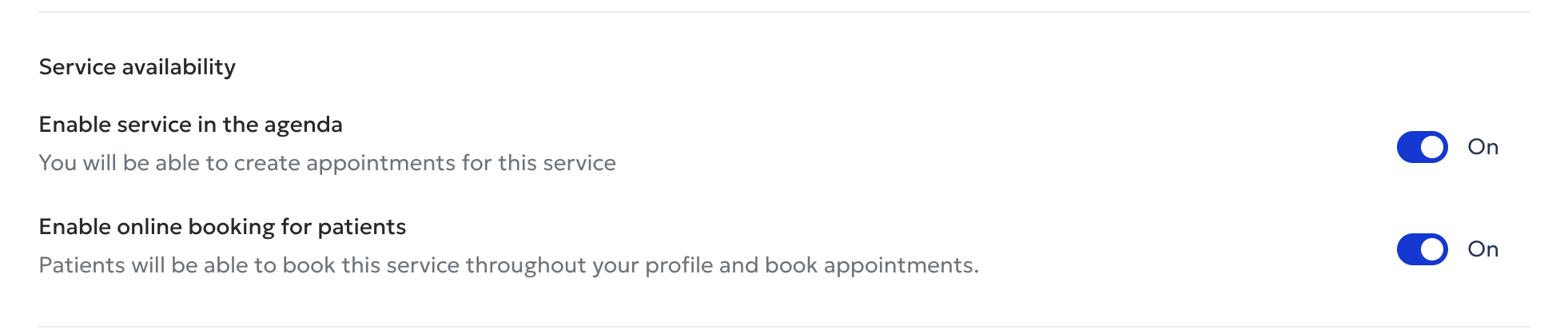
'Enable service in the agenda' lets you use the service when entering appointments yourself. 'Enable online booking for patients' makes it available for online booking. Both switches must be ON for patients to book online.
Enabling it only in the agenda does not make it visible to patients.
2. Enter the consultation price
Choose a fixed price and enter the amount, or a variable price and enter the minimum on the left and maximum on the right. Use Price description to explain price differences, possible reimbursement, INAMI rates or other relevant fee information.
3. Set the duration
Enter the actual time needed so Doctoranytime can show your availability correctly.
4. Select practice locations
Choose only the practices where you offer this service.
5. Allow group bookings
Allow several people to book the same time slot individually, for example for a class, workshop or support group. Enter the maximum number of participants (e.g. 10). This is not intended for couples' consultations.
6. Describe the service
Use Service details to explain the purpose, procedure, target patients and when they should select this appointment.
7. Add patient instructions
Add practical guidance, such as asking patients attending a knee assessment to wear shorts or loose trousers.
8. Save
Click Save once all details are complete.
Good to know
Check whether a suitable service already exists in the list for your specialty. Some predefined services also appear in patient searches. Create a custom service only if none of the existing options is appropriate.