---
title: Tâches
description: Doctoranytime Help Center
---
[Passer au contenu](https://pro.doctoranytime.doctor/fr-be/help-center/taches#main-content)
- [Français - Belgique](https://pro.doctoranytime.doctor/fr-be/help-center/taches)
- [English - Belgium](https://pro.doctoranytime.doctor/en-be/help-center/help-center/tasks)
- [Nederlands - België](https://pro.doctoranytime.doctor/nl-be/help-center/taken)
Français - Belgique
Afficher le sous-menu pour les traductions
[](https://www.doctoranytime.be/)
Ouvrir la navigation principale
Fermer la navigation principale
- - [Français - Belgique](https://pro.doctoranytime.doctor/fr-be/help-center/taches)
- [English - Belgium](https://pro.doctoranytime.doctor/en-be/help-center/help-center/tasks)
- [Nederlands - België](https://pro.doctoranytime.doctor/nl-be/help-center/taken)
Français - Belgique
Afficher le sous-menu pour les traductions
- [Contact](https://pro.doctoranytime.be/fr/contactus)
[Contact](https://pro.doctoranytime.be/fr/contactus?hsLang=fr-be)
Comment pouvons-nous vous aider ?
- Il n'y a aucune suggestion car le champ de recherche est vide.
1. [Doctoranytime Help Center](https://pro.doctoranytime.doctor/fr-be/help-center?hsLang=fr-be)
2. [Agenda](https://pro.doctoranytime.doctor/fr-be/help-center/agenda?hsLang=fr-be)
# Tâches
## Créer et organiser des tâches dans votre agenda Doctoranytime
Il vous est désormais possible de créer et de modifier des tâches dans votre agenda Doctoranytime, depuis votre ordinateur.
### 1. Créer une tâche
Pour créer une nouvelle tâche, ouvrez votre agenda.
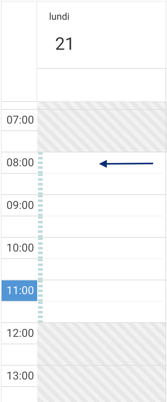
Avec votre souris, sélectionnez sur votre agenda la date et l’heure où vous souhaitez voir votre nouvelle tâche apparaître. Par exemple, pour le lundi 21 à 8h :
Choisissez le 2e onglet « tâche » :
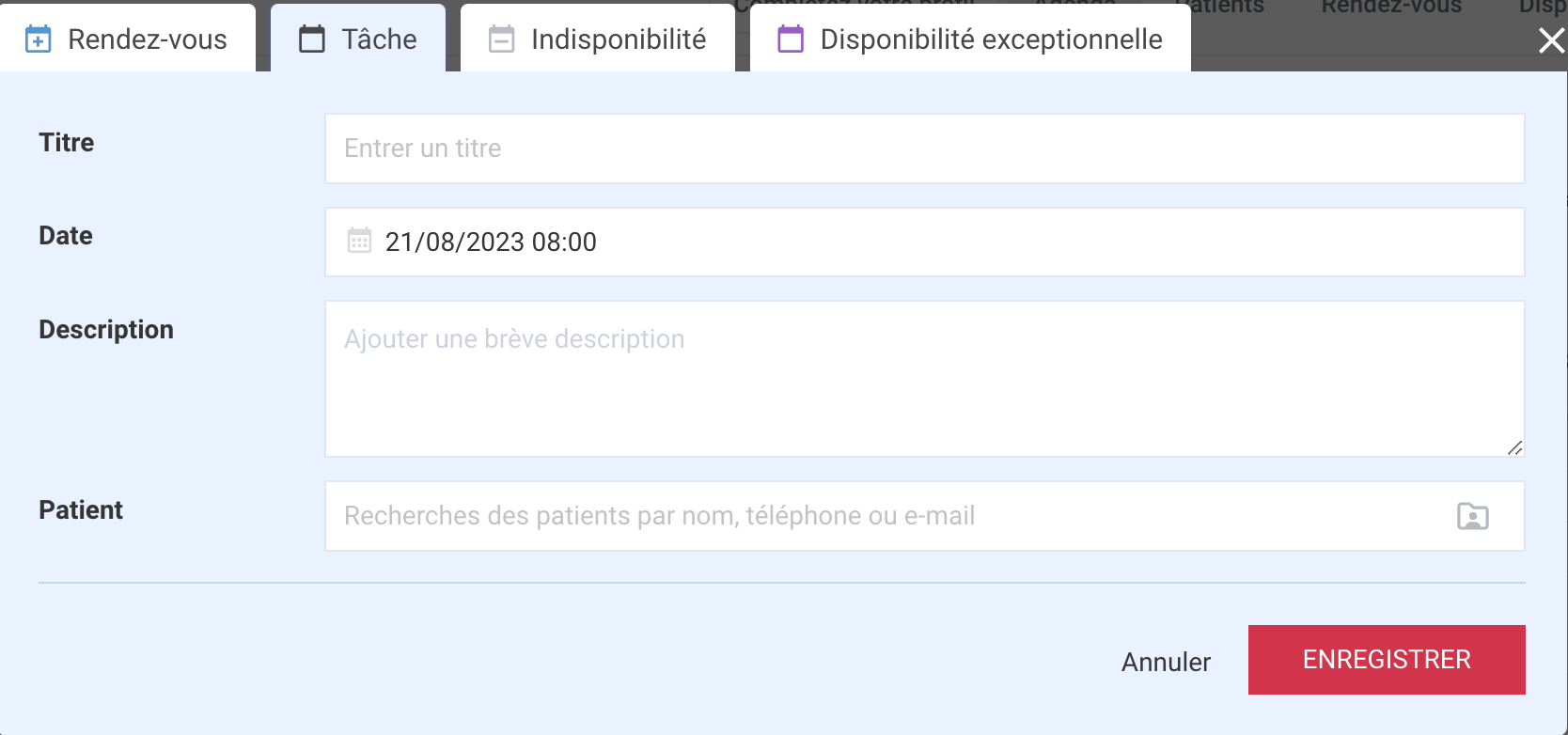
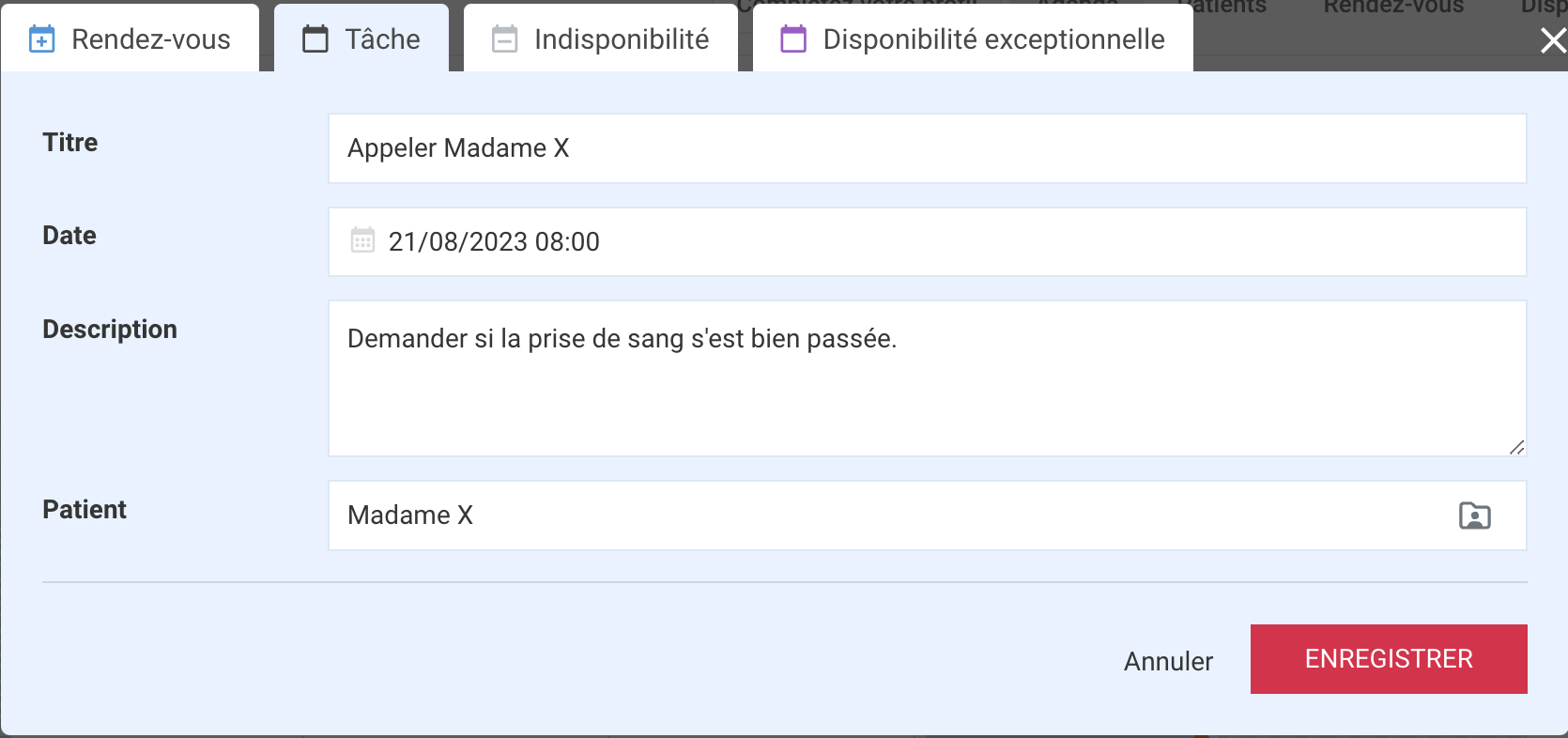
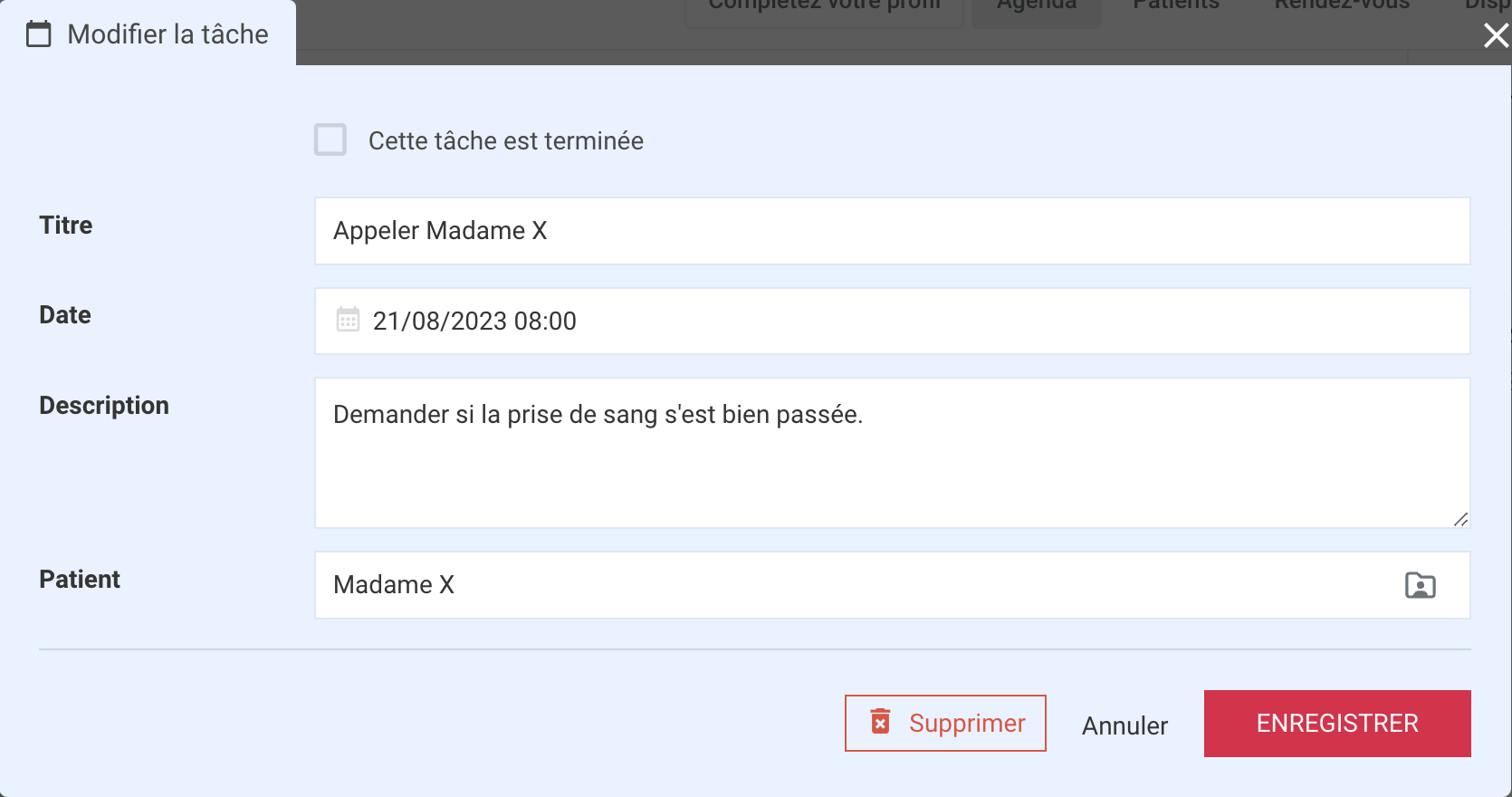
Vous pourrez alors lui donner un nom, vérifier que la date et l’heure sont correctes, ajouter une description si vous le souhaitez, et la lier à une fiche patient.
### 2. Consulter ou modifier une tâche
Vous pouvez consulter, modifier, supprimer ou créer de nouvelles tâches à tout moment via le bouton « tâches » en haut à droite de votre agenda :
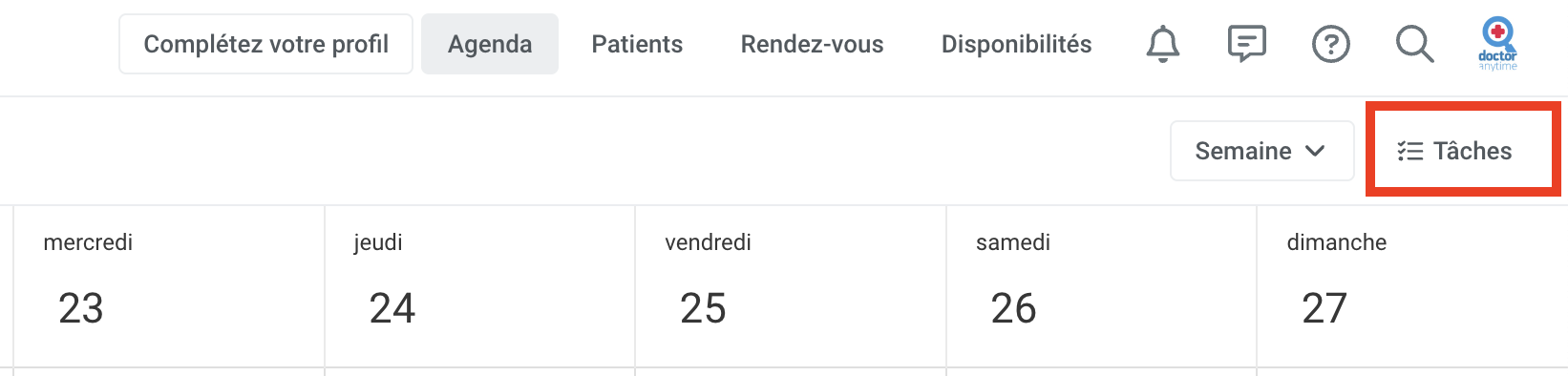
Lorsque vous cliquez sur ce bouton, vous avez accès à toutes vos tâches déjà créées, et vous pouvez en créer de nouvelles en cliquant sur « ajouter une nouvelle tâche ».
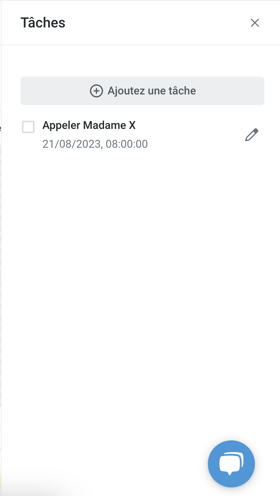
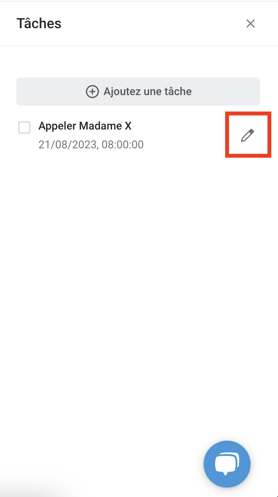
Vous pouvez également modifier les tâches déjà créées en cliquant sur le petit crayon à droite de votre tâche :
Vous arriverez à nouveau sur la première fenêtre, ce qui vous permettra de modifier le nom, la date, l’heure, la description, et le patient auquel la tâche est liée.
Vous pouvez également modifier votre tâche en cliquant directement dessus depuis l’agenda.
### 3. Marquer une tâche comme terminée
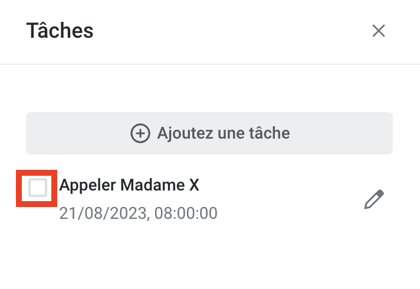
Lorsque votre tâche est effectuée, vous pouvez la marquer comme terminée :
- > Soit depuis la tâche elle-même :
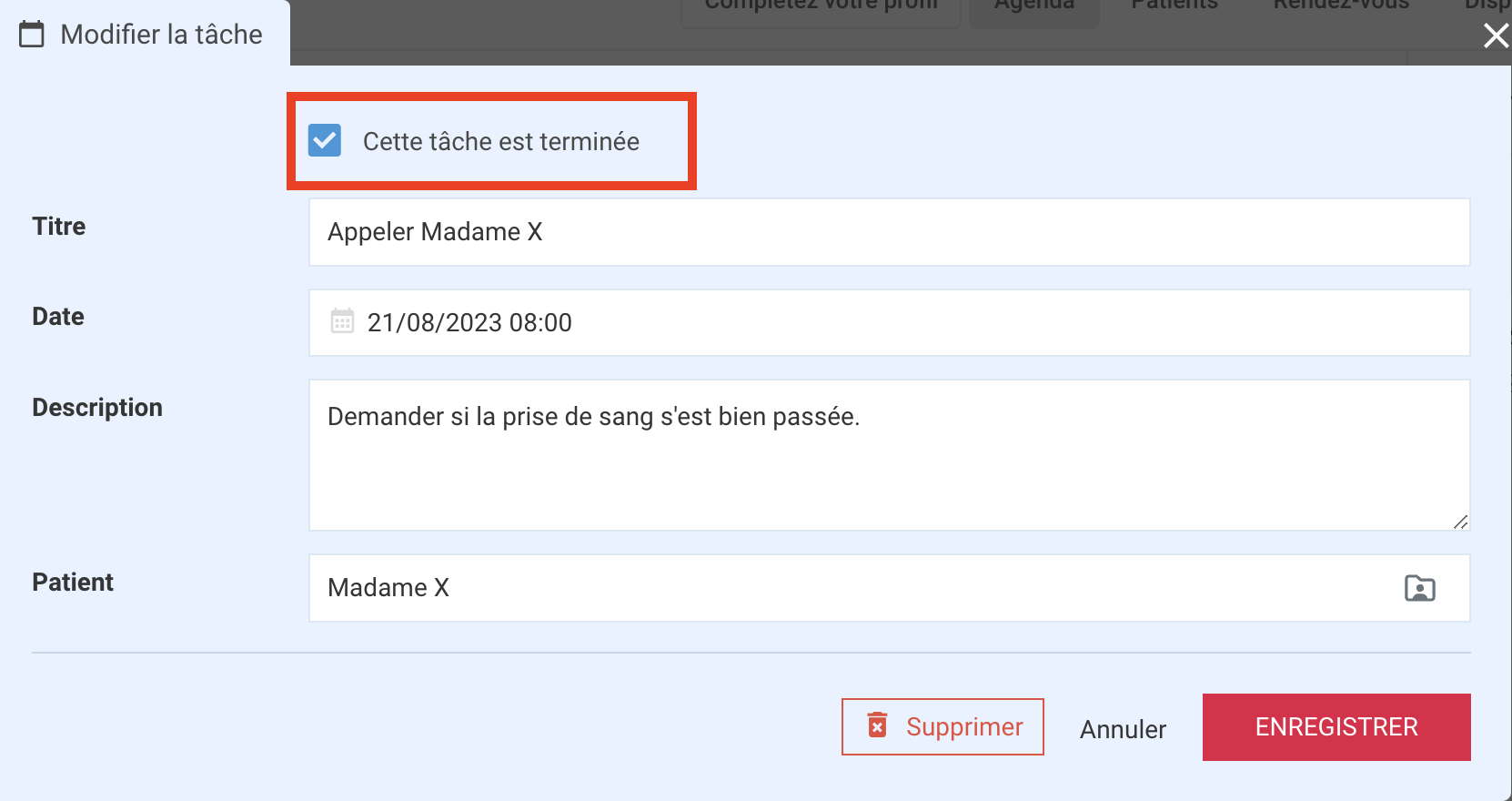
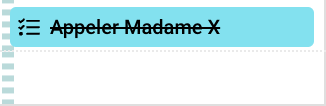
- > Soit depuis l’onglet « tâches » en cochant le carré à côté de l’intitulé de la tâche en question :
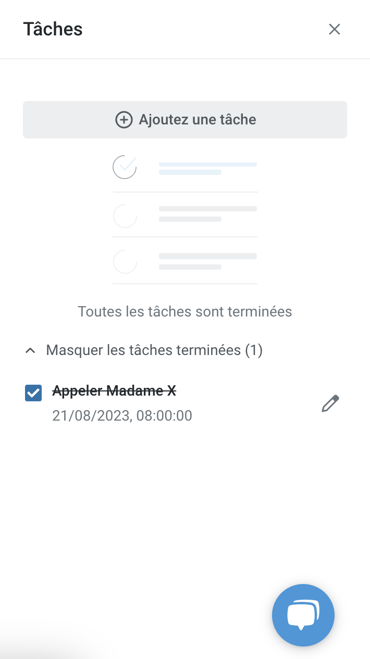
Vous pouvez ensuite consulter toutes les tâches effectuées depuis l’onglet « tâches », en cliquant sur « Voir les tâches terminées » :
- [Pour commencer](https://pro.doctoranytime.doctor/fr-be/help-center/pour-commencer?hsLang=fr-be)
- [Compte](https://pro.doctoranytime.doctor/fr-be/help-center/compte?hsLang=fr-be#main-content)
- [Paramètres du compte](https://pro.doctoranytime.doctor/fr-be/help-center/compte?hsLang=fr-be#param%C3%A8tres-du-compte)
- [Utilisateurs](https://pro.doctoranytime.doctor/fr-be/help-center/compte?hsLang=fr-be#utilisateurs)
- [Profil en ligne](https://pro.doctoranytime.doctor/fr-be/help-center/profil-en-ligne?hsLang=fr-be#main-content)
- [Services et traitements](https://pro.doctoranytime.doctor/fr-be/help-center/profil-en-ligne?hsLang=fr-be#services-et-traitements)
- [Promouvoir votre profil](https://pro.doctoranytime.doctor/fr-be/help-center/profil-en-ligne?hsLang=fr-be#promouvoir-votre-profil)
- [Gestion de votre cabinet](https://pro.doctoranytime.doctor/fr-be/help-center/gestion-de-votre-cabinet?hsLang=fr-be)
- [Gestion des disponibilités](https://pro.doctoranytime.doctor/fr-be/help-center/gestion-des-disponibilit%C3%A9s?hsLang=fr-be)
- [Agenda](https://pro.doctoranytime.doctor/fr-be/help-center/agenda?hsLang=fr-be#main-content)
- [Paramètres](https://pro.doctoranytime.doctor/fr-be/help-center/agenda?hsLang=fr-be#param%C3%A8tres)
- [Mes Patients](https://pro.doctoranytime.doctor/fr-be/help-center/mes-patients?hsLang=fr-be#main-content)
- [Importer la base de données](https://pro.doctoranytime.doctor/fr-be/help-center/mes-patients?hsLang=fr-be#importer-la-base-de-donn%C3%A9es)
- [Restrictions relatives aux patients](https://pro.doctoranytime.doctor/fr-be/help-center/mes-patients?hsLang=fr-be#restrictions-relatives-aux-patients)
- [Avis](https://pro.doctoranytime.doctor/fr-be/help-center/mes-patients?hsLang=fr-be#avis)
- [Communiquer avec mes patients](https://pro.doctoranytime.doctor/fr-be/help-center/mes-patients?hsLang=fr-be#communiquer-avec-mes-patients)
- [Les rendez-vous](https://pro.doctoranytime.doctor/fr-be/help-center/les-rendez-vous?hsLang=fr-be)
- [Vidéo Consultation](https://pro.doctoranytime.doctor/fr-be/help-center/vid%C3%A9o-consultation?hsLang=fr-be#main-content)
- [Ajouter un nouveau rendez-vous](https://pro.doctoranytime.doctor/fr-be/help-center/vid%C3%A9o-consultation?hsLang=fr-be#ajouter-un-nouveau-rendez-vous)
- [Video Consultation pour les centres médicaux](https://pro.doctoranytime.doctor/fr-be/help-center/vid%C3%A9o-consultation?hsLang=fr-be#video-consultation-pour-les-centres-m%C3%A9dicaux)
- [Sécurité des données et gestion des informations](https://pro.doctoranytime.doctor/fr-be/help-center/s%C3%A9curit%C3%A9-des-donn%C3%A9es-et-gestion-des-informations?hsLang=fr-be)
- [Questions et Réponses](https://pro.doctoranytime.doctor/fr-be/help-center/questions-et-r%C3%A9ponses?hsLang=fr-be)
- [Paiement en ligne](https://pro.doctoranytime.doctor/fr-be/help-center/paiement-en-ligne?hsLang=fr-be)
[.png?width=144&height=144&name=720x720gmail%20(1).png "doctoranytime")](http://www.doctoranytime.be)
[mailto:email@email.com](mailto:email@email.com)
Copyright © 2025, Doctoranytime