---
title: How do I change the display of my agenda?
description: You can customise your Doctoranytime agenda display to suit the way you work.
---
[Skip to content](https://pro.doctoranytime.doctor/en-be/help-center/how-do-i-change-the-display-of-my-agenda#main-content)
- [English - Belgium](https://pro.doctoranytime.doctor/en-be/help-center/how-do-i-change-the-display-of-my-agenda)
- [Français - Belgique](https://pro.doctoranytime.doctor/fr-be/help-center/comment-modifier-l-affichage-de-mon-agenda)
- [Nederlands - België](https://pro.doctoranytime.doctor/nl-be/help-center/hoe-wijzig-ik-de-weergave-van-mijn-agenda)
English - Belgium
Show submenu for translations
[](https://www.doctoranytime.be/en)
Open main navigation
Close main navigation
- - [English - Belgium](https://pro.doctoranytime.doctor/en-be/help-center/how-do-i-change-the-display-of-my-agenda)
- [Français - Belgique](https://pro.doctoranytime.doctor/fr-be/help-center/comment-modifier-l-affichage-de-mon-agenda)
- [Nederlands - België](https://pro.doctoranytime.doctor/nl-be/help-center/hoe-wijzig-ik-de-weergave-van-mijn-agenda)
English - Belgium
Show submenu for translations
- [Contact us](https://pro.doctoranytime.be/en/en/contactus)
[Contact us](https://pro.doctoranytime.be/en/en/contactus?hsLang=en-be)
How can we help you?
- There are no suggestions because the search field is empty.
1. [Doctoranytime Help Center](https://pro.doctoranytime.doctor/en-be/help-center?hsLang=en-be)
2. [Managing my agenda](https://pro.doctoranytime.doctor/en-be/help-center/managing-my-agenda?hsLang=en-be)
3. [Agenda display](https://pro.doctoranytime.doctor/en-be/help-center/managing-my-agenda?hsLang=en-be#agenda-display)
# How do I change the display of my agenda?
You can customise your Doctoranytime agenda display to suit the way you work. Several options are available on your computer and in the Doctoranytime Agenda mobile app.
## Change your agenda display settings
1. Click your profile picture in the top-right corner.
2. Open Settings.

1. Select the agenda settings.
You can change the following options.
## Set the duration of displayed time slots
Choose the intervals used to divide your agenda, from 5 to 60 minutes.
Choose an interval that matches the times when your appointments may begin. When you manually add an appointment, you can only select a start time corresponding to the configured intervals.
For example:
- If appointments can begin at 13:20, 13:40, 14:00, etc., choose 20-minute slots.
- If appointments can begin at 09:15, 09:30, 09:45, etc., choose 15-minute slots.
- If appointments begin only at 09:00, 09:30, 10:00, 10:30, etc., 30-minute slots are suitable.
Important: If the chosen interval does not match your schedule, certain times will not be selectable when manually adding an appointment.
For example, with a 30-minute display interval, you can select 13:00 or 13:30, but not 13:20. To create appointments at 13:20, choose 20-minute intervals.
Tip: Choose the smallest interval you use in your agenda so you can easily select all the appointment times you need.
## Choose the display mode
You can also change the size of appointments displayed in the agenda. Three modes are available:
- Comfortable.
- Compact.
- Automatic.
Automatic adjusts the agenda display based on your usage.
## Quickly change the view from your agenda
You can change the period displayed directly from Agenda, without opening Settings.
In the top-right corner, to the left of Tasks, click the button showing the current period, for example Week.
Choose Month, Week, 3 days or Day.

In the same menu, you can also show or hide weekends and display only active time slots.
These settings let you quickly adapt the agenda to the information you want to see.
## Change the display in the Doctoranytime Agenda app
You can also adjust the agenda display directly in the practitioner mobile app.
## Zoom in or out of the agenda
From your agenda:
1. Tap the + button in the bottom-right corner.
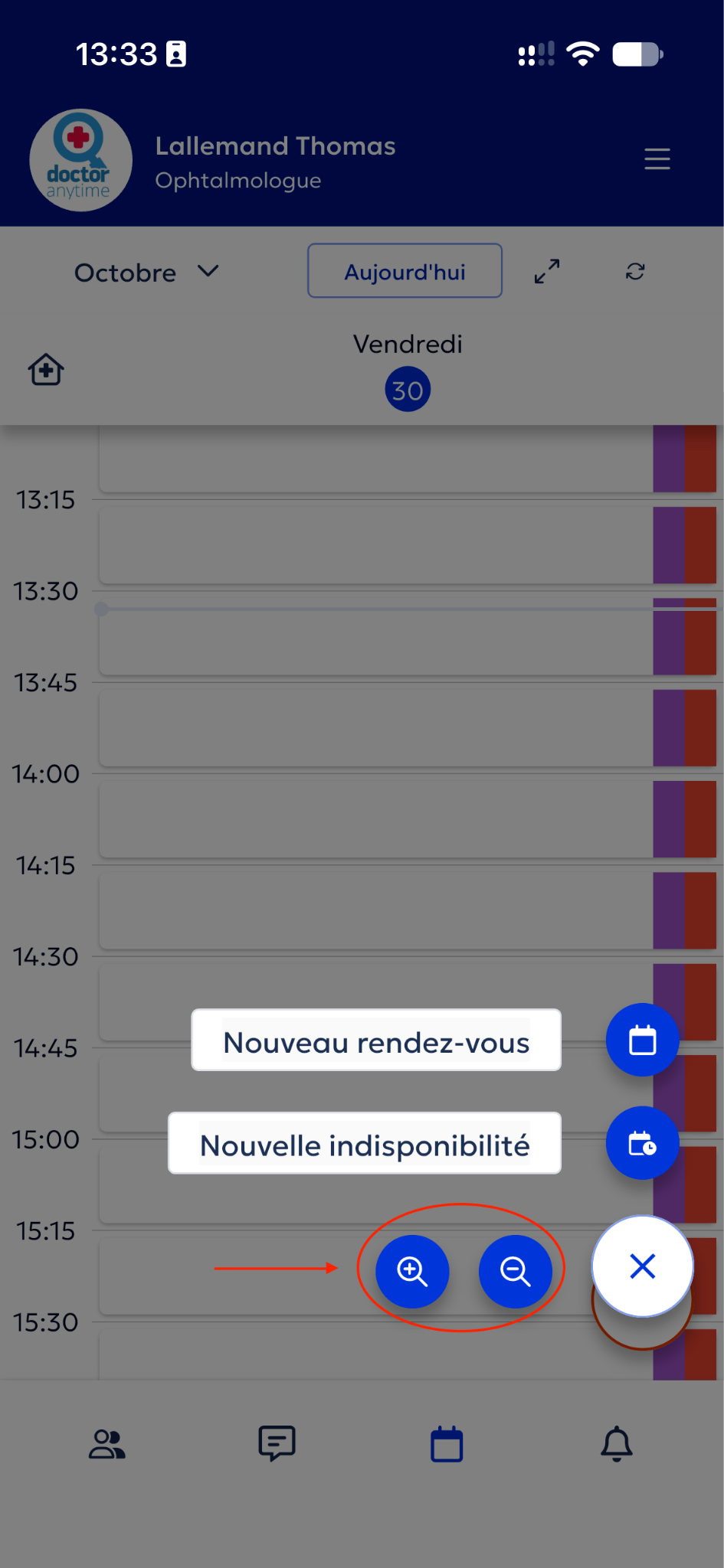
1. Select the magnifying glass with a + to zoom in.
2. Select the magnifying glass with a − to zoom out and see more information on screen.
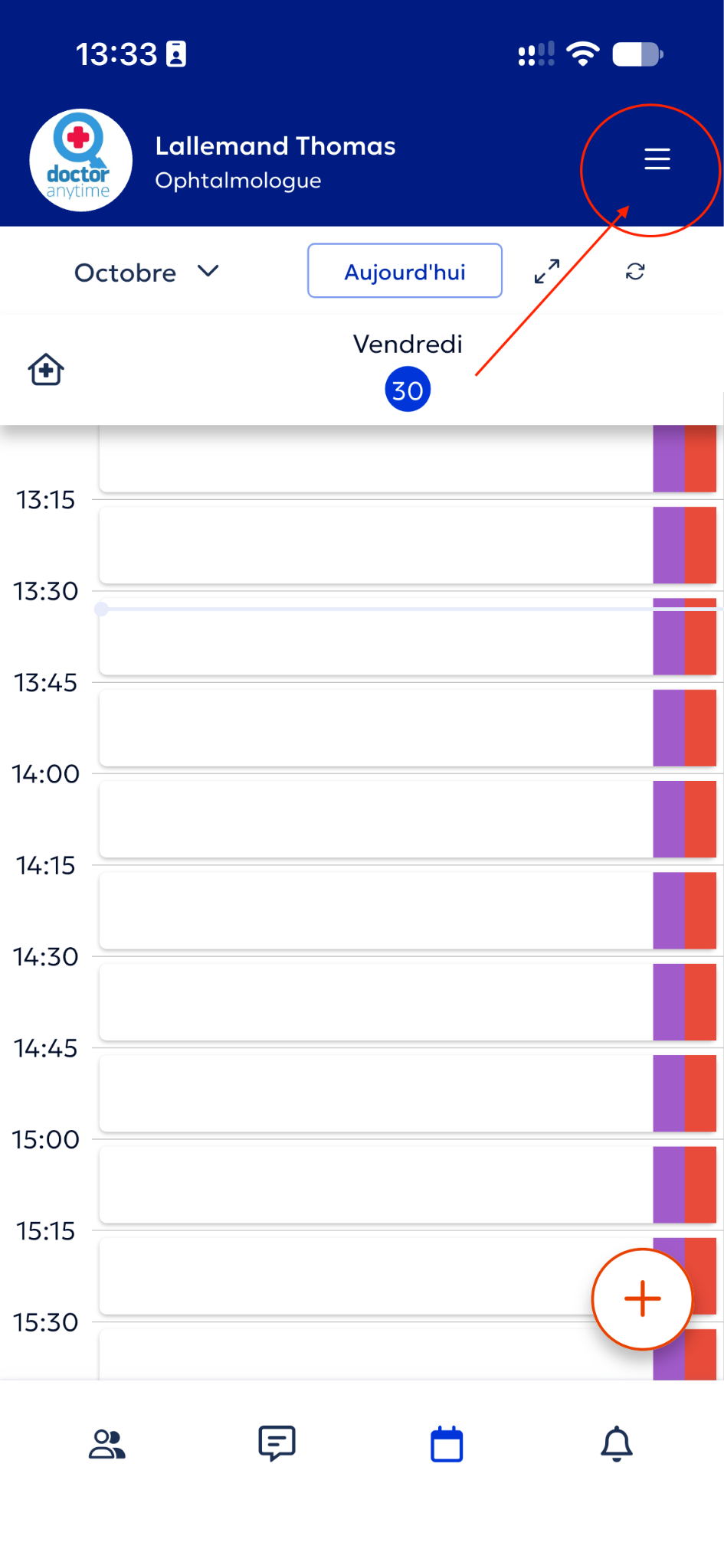
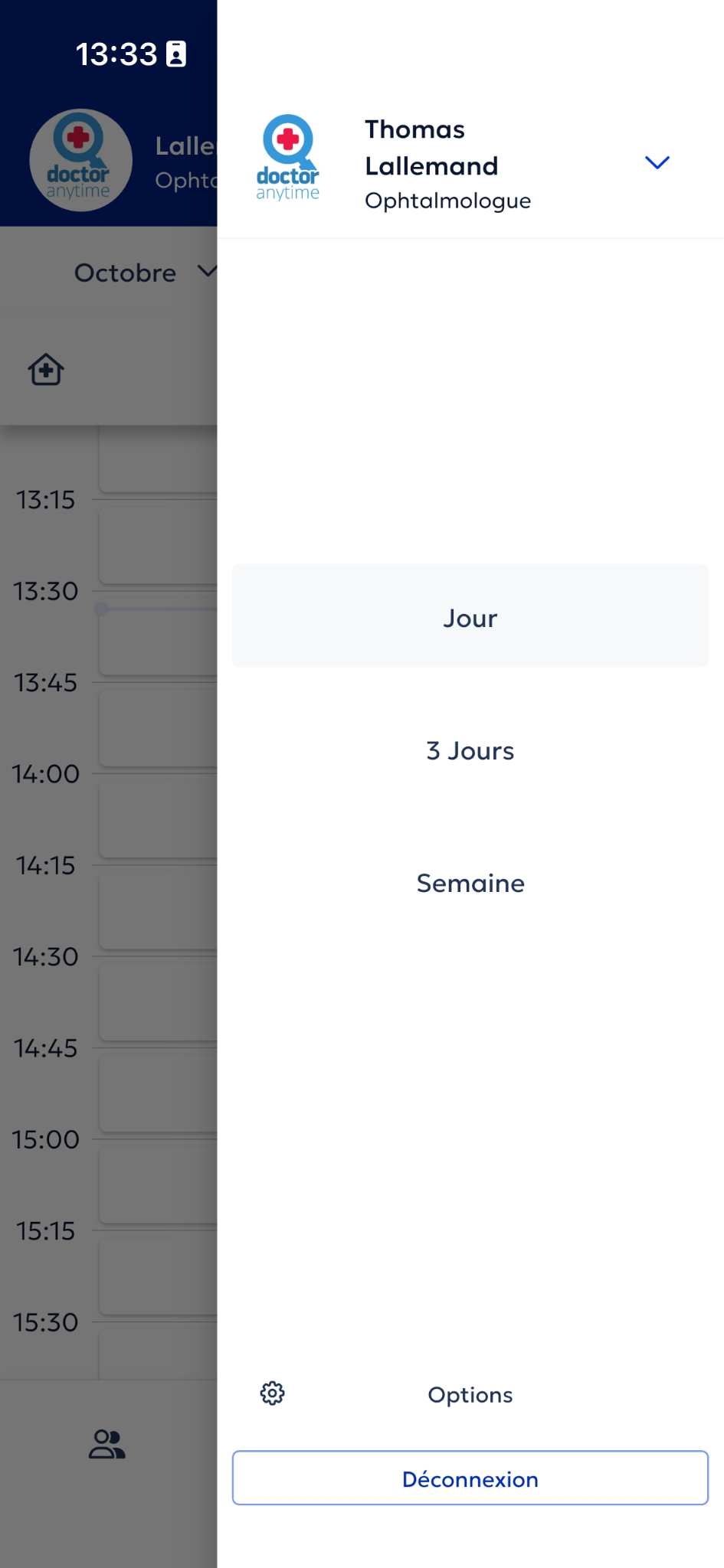
## Choose the number of days displayed
1. Tap the ☰ menu in the top-right corner of the app.
2. Choose Day, 3 days or Week.
This allows you to customise your agenda easily, whether you access Doctoranytime from your
computer or the mobile app.
- [Getting started](https://pro.doctoranytime.doctor/en-be/help-center/getting-started?hsLang=en-be)
- [Account and subscription](https://pro.doctoranytime.doctor/en-be/help-center/account-and-subscription?hsLang=en-be#main-content)
- [Account](https://pro.doctoranytime.doctor/en-be/help-center/account-and-subscription?hsLang=en-be#account)
- [Subscription](https://pro.doctoranytime.doctor/en-be/help-center/account-and-subscription?hsLang=en-be#subscription)
- [Profile and visibility](https://pro.doctoranytime.doctor/en-be/help-center/profile-and-visibility?hsLang=en-be#main-content)
- [Online profile](https://pro.doctoranytime.doctor/en-be/help-center/profile-and-visibility?hsLang=en-be#online-profile)
- [Visibility](https://pro.doctoranytime.doctor/en-be/help-center/profile-and-visibility?hsLang=en-be#visibility)
- [Practices](https://pro.doctoranytime.doctor/en-be/help-center/profile-and-visibility?hsLang=en-be#practices)
- [Managing my services](https://pro.doctoranytime.doctor/en-be/help-center/managing-my-services?hsLang=en-be)
- [Managing my agenda](https://pro.doctoranytime.doctor/en-be/help-center/managing-my-agenda?hsLang=en-be#main-content)
- [Availability](https://pro.doctoranytime.doctor/en-be/help-center/managing-my-agenda?hsLang=en-be#availability)
- [Appointments](https://pro.doctoranytime.doctor/en-be/help-center/managing-my-agenda?hsLang=en-be#appointments)
- [SMS](https://pro.doctoranytime.doctor/en-be/help-center/managing-my-agenda?hsLang=en-be#sms)
- [Tasks](https://pro.doctoranytime.doctor/en-be/help-center/managing-my-agenda?hsLang=en-be#tasks)
- [Agenda display](https://pro.doctoranytime.doctor/en-be/help-center/managing-my-agenda?hsLang=en-be#agenda-display)
- [Agenda synchronisation](https://pro.doctoranytime.doctor/en-be/help-center/managing-my-agenda?hsLang=en-be#agenda-synchronisation)
- [Users](https://pro.doctoranytime.doctor/en-be/help-center/managing-my-agenda?hsLang=en-be#users)
- [Managing my patients](https://pro.doctoranytime.doctor/en-be/help-center/managing-my-patients?hsLang=en-be#main-content)
- [Patients](https://pro.doctoranytime.doctor/en-be/help-center/managing-my-patients?hsLang=en-be#patients)
- [Payment](https://pro.doctoranytime.doctor/en-be/help-center/payment?hsLang=en-be)
- [Video consultation](https://pro.doctoranytime.doctor/en-be/help-center/video-consultation?hsLang=en-be)
- [Data security](https://pro.doctoranytime.doctor/en-be/help-center/data-security?hsLang=en-be)
- [Medical centres](https://pro.doctoranytime.doctor/en-be/help-center/medical-centres?hsLang=en-be)
[](http://www.doctoranytime.be)
[mailto:email@email.com](mailto:email@email.com)
Copyright © 2025, Doctoranytime